
Offline conversion import means sending CRM events, such as a signed contract, to Google Ads together with the Google click ID (GCLID) or with the customer's hashed email or phone number (enhanced conversions for leads).
When an import suddenly drops to zero, see our separate post on conversions dropping to zero. This one is about an import that runs but loses part of the data.
Where to check whether offline conversions reach Google Ads
You check whether offline conversions reach Google Ads in three places: offline data diagnostics, the "All conv. (by conv. time)" column and the result of each upload. The campaign report alone won't do, because according to the Google Ads API troubleshooting guide the UI doesn't organize conversions by import date, so checking an import in campaign reports can be misleading.
To open diagnostics, go to the conversion summary in Goals, hover over offline data quality in the action's status column and click "Go to diagnostics". According to Google's help on offline data diagnostics, "Excellent" means at least 90% valid events, "Good" 70-90%, "Needs attention" below 70%. The History panel shows the last 7 days or the last 7 import jobs.
The "Review row errors" diagnostic alert appears even when the import as a whole completed: it is urgent when 75% or more of the rows fail.
The second check is the "All conv. (by conv. time)" column. Google's import guidelines tell you to use exactly this column to validate imports, because it counts conversions by conversion date. Standard columns attribute a conversion to the day of the click, so a conversion that happens today after a click three weeks ago lands in that earlier week.
The third place depends on how you import. For files, Google's help on importing from files points to the "Uploads" section (Goals > Conversions > Uploads), with success or failure messages and error reports. For a connection in Data Manager, the offline data diagnostics help shows the source status under "Connected products".
When you import through the Google Ads API, diagnostics come from the offline_conversion_upload_client_summary and offline_conversion_upload_conversion_action_summary resources. According to the upload diagnostics documentation, pending events can take up to 24 hours.
Import results take time, and Google's help gives two different times: about 3 hours and typically less than 12 hours. The first refers to statistics in the import guidelines, the second to processing in the help on data discrepancies. With GBRAID and WBRAID it can take up to 72 hours.
Google's example: if clicks take 3 days to process and you upload every evening, you'll see complete data for Monday on Friday morning.
How to check: compare a week of conversions in your CRM with the "All conv. (by conv. time)" column for the imported conversion action. Some CRM leads don't come from Google ads, so a gap on its own doesn't prove an error.
8 reasons offline conversions don't reach Google Ads
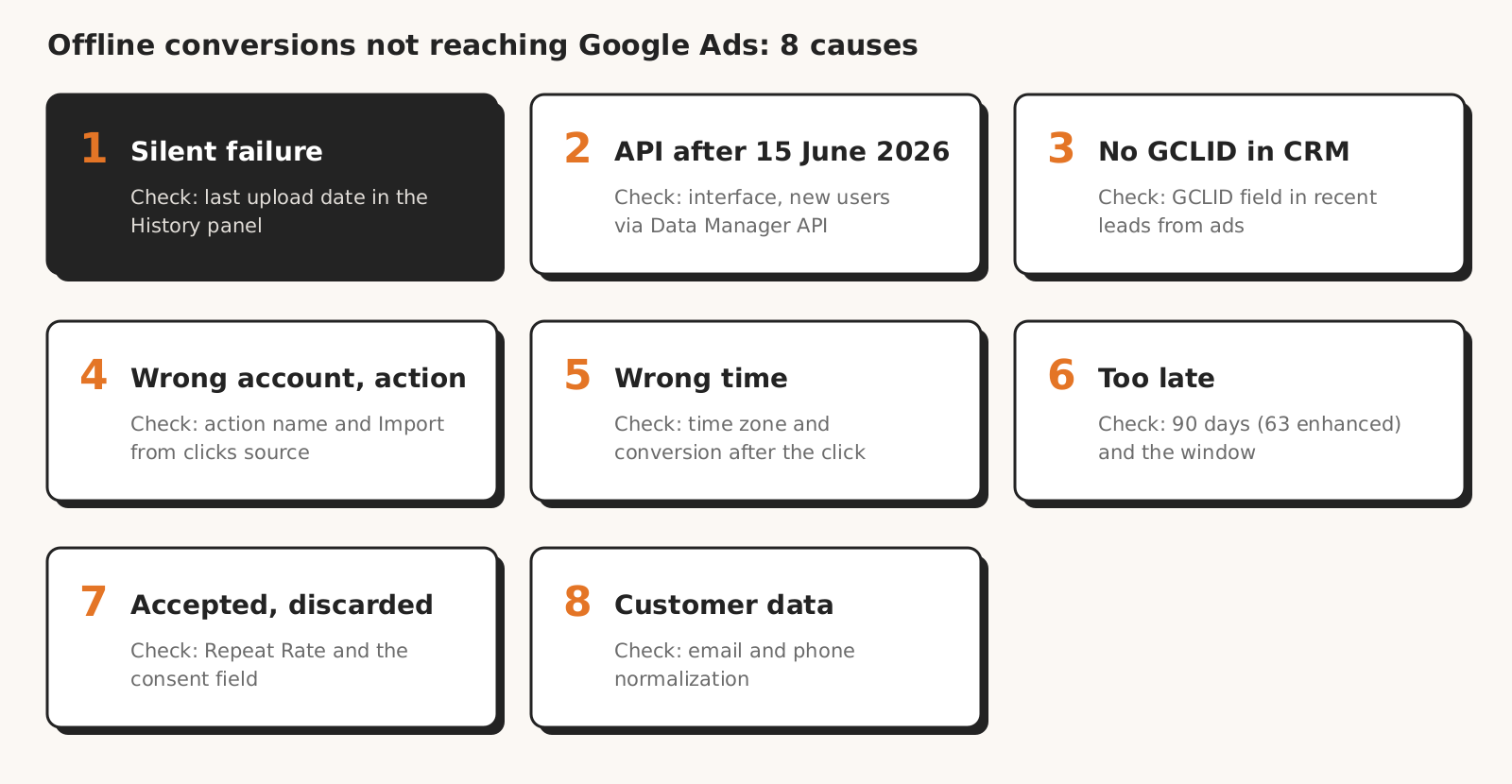
Google's help and documentation describe eight situations in which offline conversions miss Google Ads: the integration stopped sending, the import uses the Google Ads API after June 2026, the CRM lacks the GCLID, the conversion goes to the wrong account, the time is wrong, the conversion arrives too late, it is discarded after import, or the customer data doesn't match.
| Cause | How it shows | How to check |
|---|---|---|
| 1. The integration stopped sending | leads keep coming into the CRM, not into Google Ads; no error in the tool | History in offline data diagnostics, date of the last upload |
| 2. Google Ads API after 15 June 2026 | CUSTOMER_NOT_ALLOWLISTED_FOR_THIS_FEATURE error | which interface the import uses and since when |
| 3. The CRM doesn't store the GCLID | empty GCLID field on some leads from ads | a few recent leads from ads in the CRM |
| 4. Wrong account or action | action name or account error, import on a manager account | action name and source, the account the import goes to |
| 5. Wrong conversion time | conversion "before the click", a shift of a few hours | time format and time zone in the file or API |
| 6. The conversion arrives too late | expired click ID error with a long sales cycle | click age on upload day: 90 days, 63 days, conversion window |
| 7. Accepted, then discarded | success in Uploads, fewer in the report | "One" counting, duplicates, consent field |
| 8. Customer data doesn't match | "Unknown clicks" on almost every conversion | enhanced conversions diagnostics, email and phone normalization |
1. The integration stopped sending and nobody noticed
A CRM integration, for example in Zapier, n8n or your own code, can stop sending conversions without any message on the Google Ads side, because Google simply receives less data. Offline data diagnostics shows "No recent data" only after 28 days without events, so a week-long gap won't change that status.
You'll spot the gap earlier in the History panel of offline data diagnostics: by day, it shows the number of uploaded events and events with errors. For API imports, the upload diagnostics documentation describes the NO_RECENT_UPLOADS status, which can mean the import process has stopped working.
How to check: compare the date of the last upload in History, in the "By job" view, with the last day your CRM got a new customer from ads. How to find the first day with zero, and the rest of the checklist for a full drop, is in our post on zero conversions.
2. Importing through the Google Ads API after the 15 June 2026 change
Since 15 June 2026 the Google Ads API no longer accepts new users for offline conversion import, including enhanced conversions for leads. The Google Ads Developers blog wrote on 15 May 2026 that the Data Manager API is now the primary interface for this kind of import, and new users get the CUSTOMER_NOT_ALLOWLISTED_FOR_THIS_FEATURE error.
If you were importing before, you can keep sending through the Google Ads API during the transition to the Data Manager API; access is granted per developer token. Google describes the period that decides access differently in two places: the blog says December 2025 to May 2026, the help on import discrepancies says January to June 2026.
How to check: ask the person or tool that sends the import which interface it uses and whether an access error has appeared since 15 June 2026. A new integration, for example in n8n or your own code, should go through the Data Manager API from day one.
3. The CRM doesn't store the GCLID (or stores it wrong)
A GCLID conversion reaches Google Ads only if the click ID made it from the page URL to the CRM lead. help on setting up GCLID imports requires auto-tagging, a hidden form field, a script storing the GCLID on every page (not just the landing page) and a GCLID field in the CRM. The GCLID is case-sensitive.
Google's sample script in that help stores only the gclid identifier from the URL. Yet the Google Ads API offline import documentation also describes gbraid (an ad click that leads to an iOS app) and wbraid (a click in an iOS app that leads to a website) and recommends that you send every click identifier you capture, not just gclid.
How to check: open a few recent CRM leads whose source says Google Ads and see whether the GCLID field is filled in and whether the value has been altered, for example lowercased.
4. The conversion goes to the wrong account or the wrong action
An offline conversion is rejected when the account you send it to has no conversion action with the same name and an "Import from clicks" source. According to the help on import discrepancies, for accounts under a manager account cross-account conversion tracking also matters, and an action created on the manager account has to be uploaded from that manager account.
The help on importing from files requires the action name to match exactly, including spelling and capitalization. The Google Ads API documentation adds a case that's easy to miss after an account handover: the NO_CONVERSION_ACTION_FOUND error appears when the action belongs to a former manager account that was unlinked after the click.
How to check: compare the action name in the file or the integration settings with the name in the conversion summary and check the "Conversion source" column. When importing from a manager account, check diagnostics on the manager account: according to the upload diagnostics documentation, the client account may not have them in the API at all.
5. Wrong conversion time: time zone, format, conversion before the click
The conversion time must include a time zone and be later than the click. The help on importing from files says that a missing or wrongly formatted time zone in the conversion time is a common cause of upload errors; you can set the time zone in the "Parameters:TimeZone" row or in the conversion time column.
According to the help on import discrepancies, a conversion can't happen before the click, and a click less than 6 hours old returns a "Click too recent" error. The Google Ads API documentation allows any time zone but recommends the account's time zone if you want the numbers to match the UI.
How to check: compare the conversion time in one row of the file or integration log with the time of that lead in your CRM. A shift of a whole number of hours points to the time zone.
6. The conversion is uploaded too late
Google Ads won't accept an offline conversion more than 90 days after the last click: the help on discrepancies says Google keeps the GCLID that long, and the import guidelines say such conversions aren't imported. For enhanced conversions for leads the same limit is 63 days. There's also an error when the conversion is older than the action's conversion window.
You can't fix the window retroactively: according to Google's help on conversion windows, a change only applies to conversions after the change, and the Google Ads API documentation says for the EXPIRED_EVENT error that a new window only covers clicks recorded after the change.
How to check: count how many days pass in your CRM from click to signed contract. If the sales cycle is sometimes longer than the conversion window, upload an earlier stage, such as a qualified lead, that falls within the window. That's what the help on discrepancies recommends for conversions after more than 90 days.
7. Import accepted, conversion discarded
An offline conversion can pass the import and still not appear in the Google Ads report. The help on import discrepancies lists three reasons for discarding after upload: "One" counting with several conversions for the same click, the invalid and spam conversion filter, and the end-of-month lock when you pay for conversions.
The Google Ads API documentation on enhanced conversions adds that conversions dropped during processing can't be recovered.
Duplicates count once: according to the import guidelines, Google ignores a conversion with the same identifier, action name and date and time, and shows an error message for the duplicate.
According to the blog on Data Manager API diagnostics, a successful request doesn't guarantee that every record is processed. The July Data Manager API update also shows that an invalid optional field doesn't stop the request and only ends with a warning.
A separate reason is missing consent information: the Google Ads API offline import documentation warns that without the consent field conversions may not be attributable; instead of the field, you can set account-level default consent settings in Data Manager. How consent works on the cookie banner side is covered in our post on Consent Mode v2.
How to check: in the conversion summary, add the "Repeat Rate" column: a value above 1 with "One" counting means discarded conversions. In the integration, check whether it sends the consent field and whether it logs warnings, not only errors.
8. Enhanced conversions: the customer data doesn't match
With enhanced conversions for leads, Google matches the hashed CRM email or phone with your site's tag data and Google accounts. "Unknown clicks" (CLICK_NOT_FOUND in the API) is normal here, as you also send non-ad customers. The help on import discrepancies calls it a problem only when it hits all conversions or attributions are far below expectations.
The Google Ads API documentation shows two silent traps. First: a hash of unnormalized data, such as an email with a capital letter or a non-E.164 phone, is technically valid, so the API accepts it and matching fails. Second: the API counts CLICK_NOT_FOUND warnings as successes in offline diagnostics, so a high success rate can hide missing matches.
How to check: open Goals > Conversions > Summary, the Diagnostics tab, and look for the "No user-provided data matches" or "No attempted imports" alerts described in Google's help on enhanced conversions diagnostics. Then check in the integration that, before hashing, the email is lowercased, trimmed of spaces and free of accents, as the help on import discrepancies requires.
How not to train bidding on bad import data
Bid strategies learn from the "Conversions" column, that is from primary actions, so an error in an import to a primary action carries over into bidding. According to Google's help on conversion tracking data, "Conversions" column data is used in bid strategies, and the GCLID setup help calls primary actions "biddable" and secondary ones "observation-only".
Rules that follow from Google's help and documentation:
- Test without importing. The Google Ads API has validate_only mode, and the Data Manager API for offline conversions has validateOnly: both check the request without saving conversions. A test conversion sent to a primary action ends up in bidding.
- Wait 4-6 hours after creating an action, as the GCLID setup help says; conversions sent earlier can take up to 2 days to show in reports.
- Upload daily. Google's lead generation best practices recommend uploading data regularly, ideally daily.
- Correct within 7 days. According to Google's help on conversion adjustments, a retraction or restatement affects bidding only within 7 days of the conversion being recorded; after that, up to 54 days, you only fix reports. An adjustment needs an order ID or, for offline imports, the GCLID and conversion time; with GBRAID, only the order ID.
- A retraction can't be undone. With "Every" counting, the same help offers a workaround: upload the same data again with slightly different timestamps, for example shifted by a few seconds.
Our suggestion, not Google's recommendation: set up a new or rebuilt import as a secondary action first and compare it with your CRM for a week or two. Make it primary only when the numbers match and diagnostics show no alerts. How importing qualified leads cuts bidding off from form spam is covered in our post on spam leads.
Checklist: are offline conversions reaching Google Ads
You can check whether offline conversions reach Google Ads in ten points, from diagnostics to customer data. The points follow the order of the 8 causes.
- 1Does offline data diagnostics show "Excellent" or "Good" quality, and does History show uploads from the last few days?
- 2Does a week of CRM numbers roughly match the "All conv. (by conv. time)" column, after waiting for processing?
- 3Which interface does the import use, and has an access error appeared since 15 June 2026?
- 4Do recent leads from Google Ads have the GCLID filled in the CRM, and does the integration also send gbraid and wbraid?
- 5Is the action name in the import identical to the name in the account, and is the source "Import from clicks"?
- 6Does the import go to the right account, and with a manager account, do you check diagnostics on the manager account?
- 7Does the conversion time include a time zone and come after the click?
- 8Does the sales cycle fit within 90 days (63 for enhanced conversions) and within the action's conversion window?
- 9Is the "Repeat Rate" no higher than 1 with "One" counting, and does the import send the consent field?
- 10Does enhanced conversions diagnostics show no missing matches, and are email and phone normalized before hashing?
If point 1 or 2 fails and the action is primary, fix the import before you change anything in your campaigns, and adjust wrongly sent conversions within 7 days.
What this post on offline conversions doesn't cover
This post isn't a guide to setting up offline conversion import or integrating a specific CRM, and it leaves out phone call imports and store sales. We don't say which cause happens most often, because Google doesn't publish that data.
Google's help is sometimes inconsistent: it gives two processing times and two periods that decide access to importing through the Google Ads API. All menu paths, column and message names come from Google's help and documentation read on 18 November 2026. Names in your account may look different depending on interface language and updates.
Marketing Workspace and offline conversion import
Marketing Workspace, our AI assistant for Google Ads, Meta Ads and GA4 accounts, doesn't send conversions to Google Ads and won't fix your import for you. It reads account data through the API and answers questions; Google Ads changes it can only propose for your approval. Diagnostics, CRM and integration you check with the offline conversion checklist.
The import from a CRM to Google Ads itself is usually an automation: a scheduled file, Zapier, n8n or custom code. We also build automations for agencies that deliver them to clients under their own brand.

Founder of Roition, independent Google Ads API developer
Founder of Roition, with almost 3 years of Google Ads experience. Designs and builds process automation for Polish companies: system integrations, handling enquiries and quotes, AI assistants working on company data.
Frequently asked questions
Does an API response with no error mean the offline conversions reached Google Ads?
No. An API response and a green status in your tool only mean the data was accepted. You check attribution in offline data diagnostics and in the "All conv. (by conv. time)" column.
How long until imported offline conversions show up in Google Ads?
From a few hours to a few days. Google's help says about 3 hours in one place, typically under 12 hours in another, and up to 72 hours with GBRAID and WBRAID. Complete data for a day of clicks shows once all its conversions are uploaded.
Why can't I see imported conversions in the report for the upload date?
Because Google Ads doesn't report conversions by upload date. Standard columns count them by click date, and the "by conv. time" columns by conversion date. Check the import in the "All conv. (by conv. time)" column and in offline data diagnostics.
Does the "Unknown clicks" error with enhanced conversions mean the import isn't working?
Not if it affects only some conversions. You also send customers who didn't come from Google ads, so Google won't attribute them. It's a problem when the error affects all or nearly all conversions.
Can you import offline conversions through the Google Ads API after 15 June 2026?
Yes, but only if you were already importing that way and are allowlisted by developer token, during the transition to the Data Manager API. A new integration gets the CUSTOMER_NOT_ALLOWLISTED_FOR_THIS_FEATURE error and should use the Data Manager API.
Can you fix offline conversions sent in error?
Yes, via adjustments, if the conversion has an order ID or, for offline imports, a GCLID and conversion time. Adjustments affect bidding within 7 days of recording; reports can be fixed for up to 54 days. A retraction can't be undone, but with "Every" counting you can re-upload with a shifted time.
How often should you upload offline conversions to Google Ads?
Daily. Google recommends it in its lead generation best practices, and the help on discrepancies also tells you to upload more often for clicks older than 90 days.
Should you store only gclid, or gbraid and wbraid too?
All of them, whenever they appear. The Google Ads API documentation recommends sending every click identifier you capture; gbraid and wbraid relate to clicks involving iOS apps, and Google's sample script in the help stores only gclid.