
The chatbot itself learns your store in 1-5 minutes, and your own work in the panel takes about 5 minutes if you already have the key and the feed.
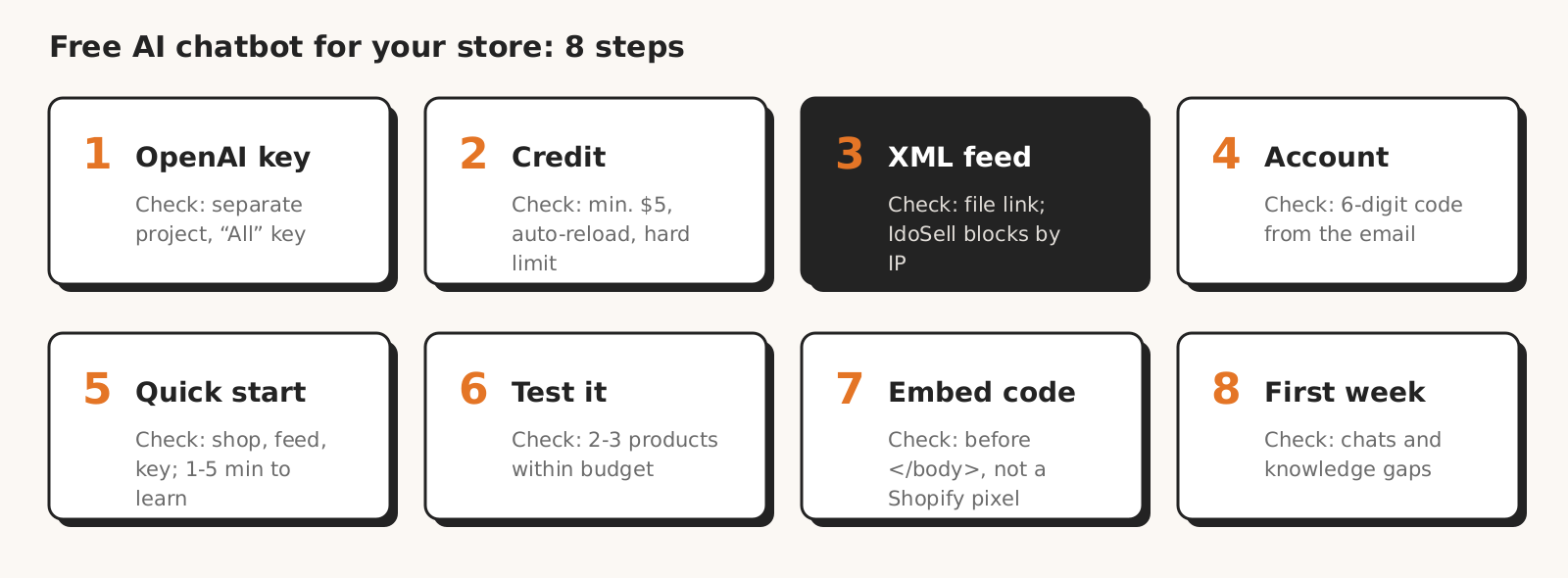
Every step has the exact paths in the Shoper, IdoSell, WooCommerce, PrestaShop and Shopify panels. We also say honestly what our chatbot does not do and when you are better off paying for Tidio, Smartsupp or Sensbot.
What you get and what you need
Our free AI chatbot works in your store as a shopping advisor. To set it up, you need your store address, an OpenAI API key, a card to top up your OpenAI account, access to your store admin and, ideally, an XML feed address. The chatbot asks the customer about their need and budget, recommends 2-3 products from the feed with a photo and price, and answers questions about delivery or returns from the content of your site.
It recommends only products in stock, and when it does not know something, it says so.
| What to prepare | Why | Where from |
|---|---|---|
| Store address | the chatbot reads your terms, delivery, returns, blog | address bar |
| XML feed address (Google Merchant Center or Ceneo) | product prices, availability and photos | store admin or a plugin, step 3 |
| OpenAI API key | the chatbot answers through an OpenAI model on your account | platform.openai.com, step 1 |
| Payment card | top-up of your OpenAI account, at least $5 | step 2 |
| Access to your store admin | pasting one code snippet | step 7 |
The feed is optional, but without it the chatbot will not show products with a photo and price; it will only answer from your site content.
Step 1. Create an OpenAI API account and a key
You create the OpenAI API key for the chatbot at platform.openai.com, under API keys, with the “Create new secret key” button. You see the full key only once, when you create it, so copy it right away (OpenAI help). If you lose a key, delete it and create a new one.
An API account is not the same as a ChatGPT Plus subscription. OpenAI states plainly in its billing help that ChatGPT and the API platform are billed separately, so a ChatGPT subscription does not cover the cost of the chatbot.
We recommend a separate project for the chatbot. Every account has a “Default project”, and you create a new one from the project name menu in the top left corner with “Create project” (OpenAI help on projects). A separate project means a separate spend limit and a separate key that you can turn off without touching anything else.
Leave the key permissions at “All”; the separate project with a limit is what contains the damage if the key ever leaks. A “Read Only” key is not enough for conversations, and our panel rejects it as early as Quick start.
Step 2. Top up your account and set a hard spend limit
The chatbot answers only when your OpenAI API account has credit: new accounts are prepaid, and the first top-up is at least $5, although OpenAI suggests $10 by default. You top up in Settings > Billing with “Add payment details”. Credits are valid for a year and, as a rule, are not refundable.
Auto-reload is on by default when you set up billing: turn it off and set a hard project limit if you want the cost to stop at what you paid in. The balance alone is not an instant block: traffic can keep going for a short while after credits run out, and a negative balance is deducted from your next top-up.
The second layer is the project spend limit: Project settings > Limits > Edit spend limit, a monthly amount and the “Enforce a hard limit” option (OpenAI docs). Once the limit is exceeded, the chatbot stops answering until the start of the next month or until you raise the limit. A customer in your store then sees the message “The assistant is temporarily unavailable”, and you get an email from us asking you to top up the account.
OpenAI notes that spending can slightly exceed the amount you set.
Example (numbers for illustration): a $5 monthly limit at our estimate of $1 per 1,000 messages is about 5,000 customer messages a month, minus the small cost of refreshing the feed and the site, which also runs on your key.
Step 3. Find your product feed address
The product feed address for the chatbot is a link to the XML file your store already sends to Google Merchant Center or Ceneo: in Shoper and IdoSell you will find it in the admin panel, while WooCommerce, PrestaShop and Shopify need a plugin, module or app. The chatbot reads Google Shopping and Ceneo fields: price, sale price, link, image, availability, category and brand, and it refreshes the feed daily.
| Platform | Where the feed is | Note |
|---|---|---|
| Shoper | Zwiększaj sprzedaż (Boost sales) > Porównywarki cen (Price comparison sites), turn it on in the Aktywność (Activity) column, copy “Adres wtyczki XML” (XML plugin address) (Shoper Learn) | product bundles are skipped (Shoper Learn) |
| IdoSell | MARKETING > Porównywarki cen i katalogi (Price comparison sites and catalogs), Dodaj nowy serwis (Add new service), then Wybierz (Select) > Plik eksportu (Export file) | the feed is blocked to the comparison site's IP addresses; you can lift the block for 30 days at most |
| WooCommerce | no file out of the box; a plugin such as CTX Feed or Product Feed PRO creates the XML and gives you a link | Google for WooCommerce sends products through the API and does not give you a file link |
| PrestaShop | not available out of the box; a Google Merchant or Ceneo feed module (usually paid) | |
| Shopify | an app with an XML feed (e.g. for Ceneo, from $4.99/month) | the Google & YouTube channel syncs products without an XML file |
The IdoSell trap: a feed from the built-in integration can only be downloaded from the comparison site's IP addresses. IdoSell help lets you lift the block in the feed settings, but only for 30 days, and the preview link works for 30 days at most. Our server can download the feed only during that time. After 30 days the chatbot is left with the products from the last download, so prices and availability stop matching.
If your IdoSell panel lets you add an IP address to the feed, write to us at kontakt@roition.com: we will give you our server's address.
If you do not have a feed, leave the field empty. The chatbot will learn from your site, but it will not show product cards.
Step 4. Create an account in the chatbot panel
Signing up on the chatbot page takes an email, a password (at least 8 characters), accepting the terms and agreeing to marketing emails. A 6-digit code arrives by email, and you enter it on the next screen. Agreeing to our emails is the only thing we ask in return for the tool.
Step 5. Quick start: three fields
Quick start in the chatbot panel is the “Launch your chatbot in 3 steps” screen with three fields: store address, feed address and OpenAI key. You land on it after verifying your email. The panel checks the key and the feed before it saves anything, so you will see a mistake in the link or the key right away as a message in the panel.
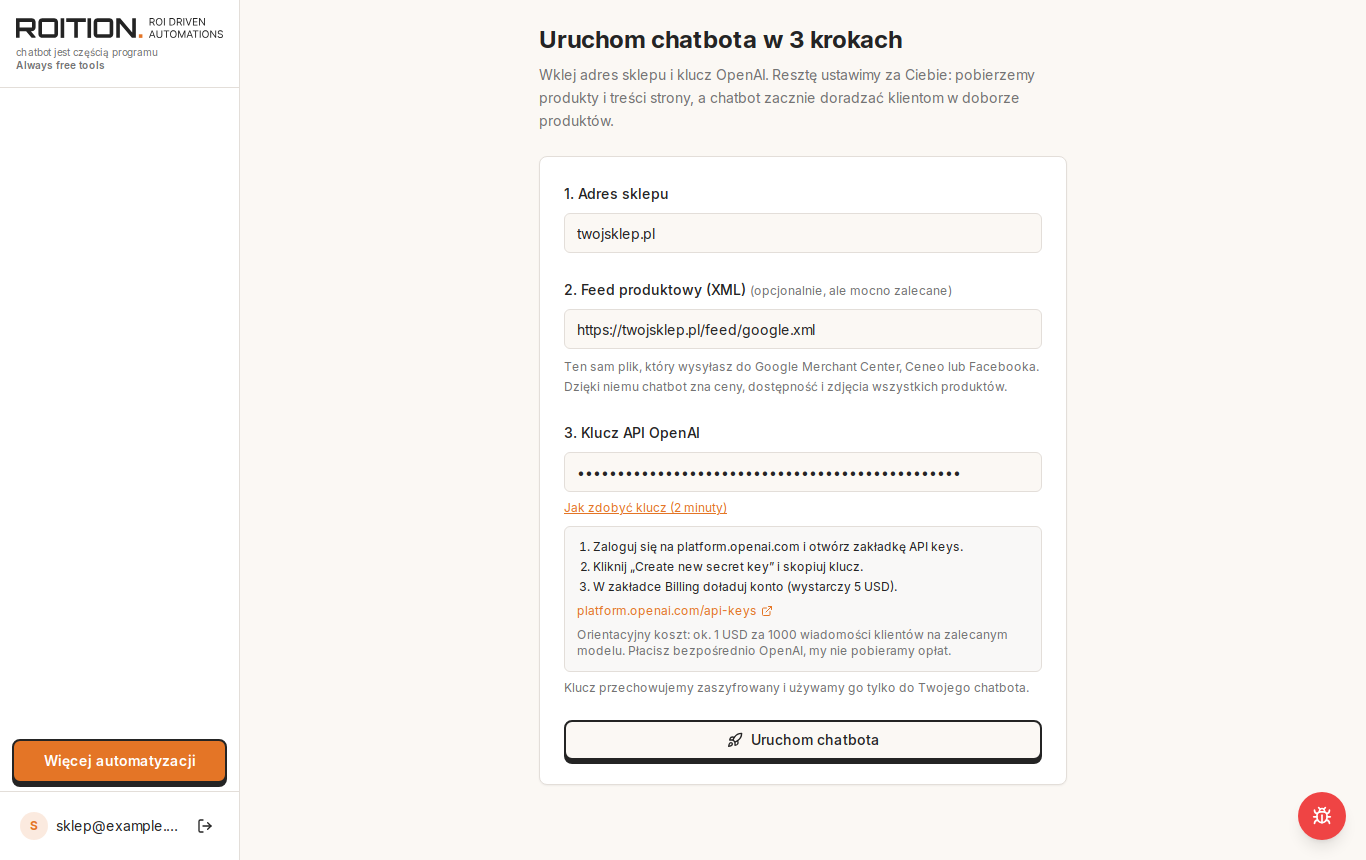
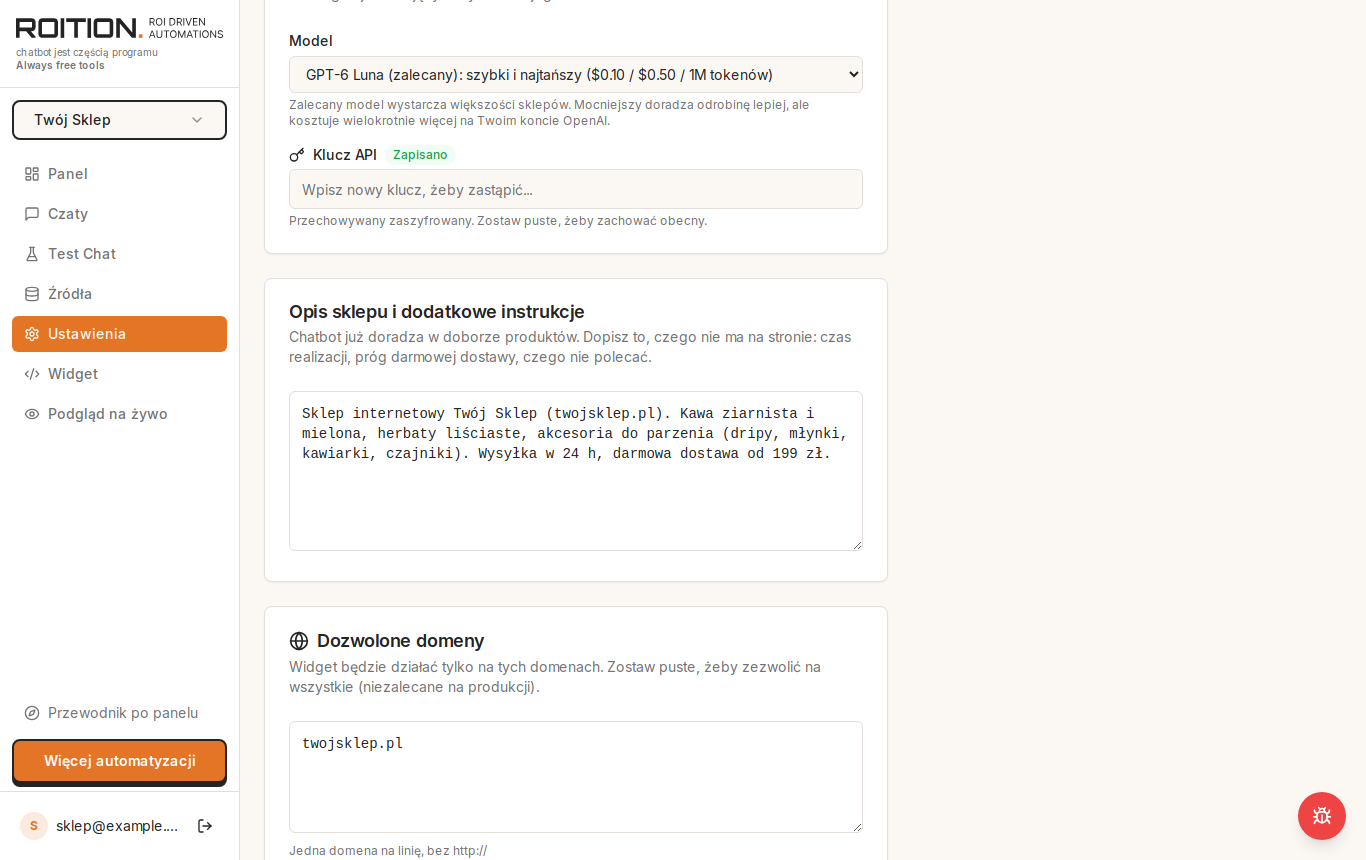
After you click “Launch chatbot”, the panel downloads your site content and the products from the feed. Learning your store usually takes 1-5 minutes, and you see the progress on screen. We store the key encrypted and use it only for your chatbot. The default model is GPT-6 Luna, the cheapest on the panel's model list; you can change the model later in the settings.
Step 6. Test the chatbot like a customer
Before you paste the code, talk to the chatbot in the panel (Test Chat). Write what a customer would write, e.g. “a gift for a 6-year-old who likes cars, up to PLN 100”. A good answer is a follow-up question or 2-3 products with a photo and price that fit the budget. Ask about delivery and returns too.
If the chatbot replies “The assistant is temporarily unavailable” in the test chat, check the balance and spend limit on your OpenAI account.
When information is missing, add it in Settings, in the “Shop description and extra instructions” field: lead times, free delivery threshold, what not to recommend, how to address customers.
Step 7. Set the look and paste the code on your site
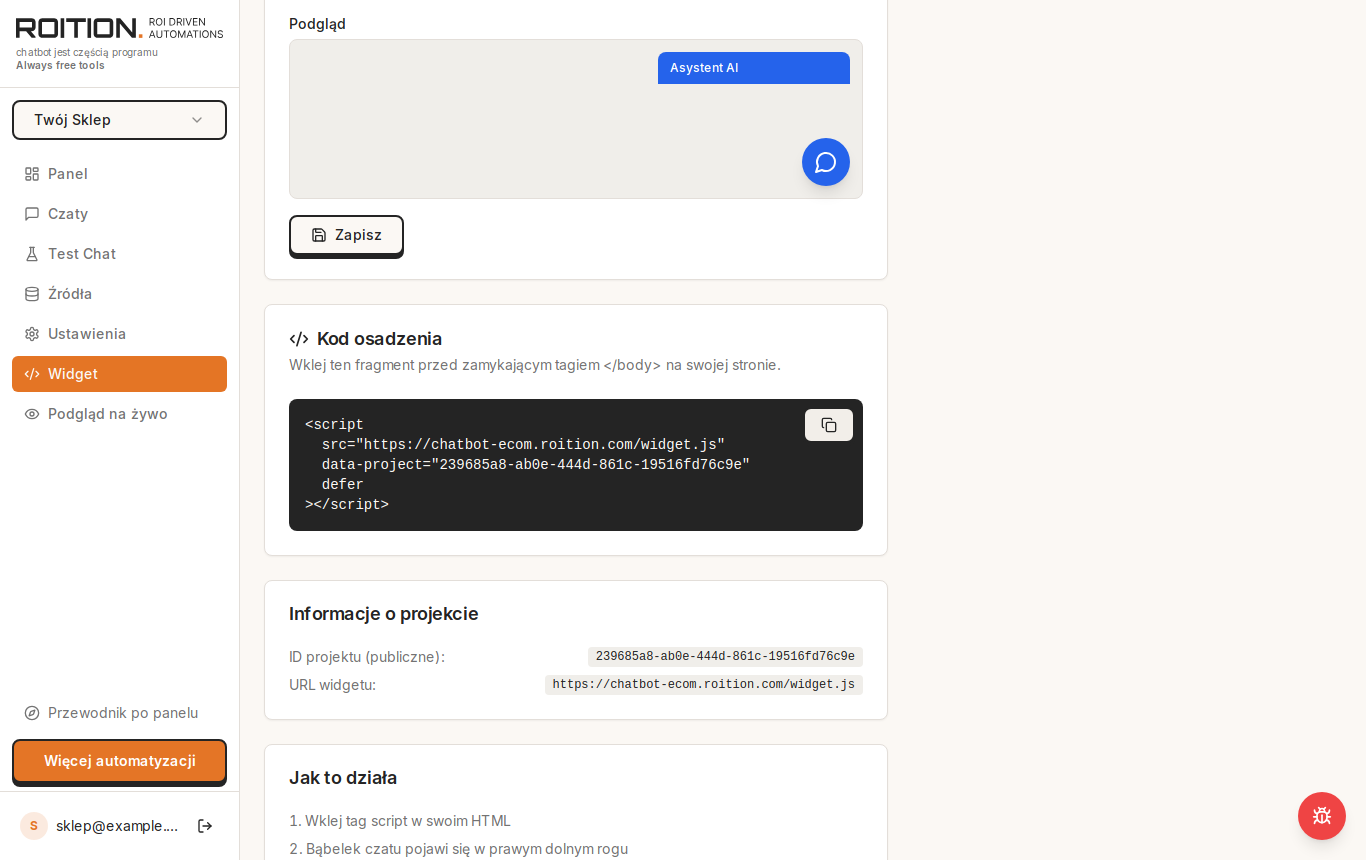
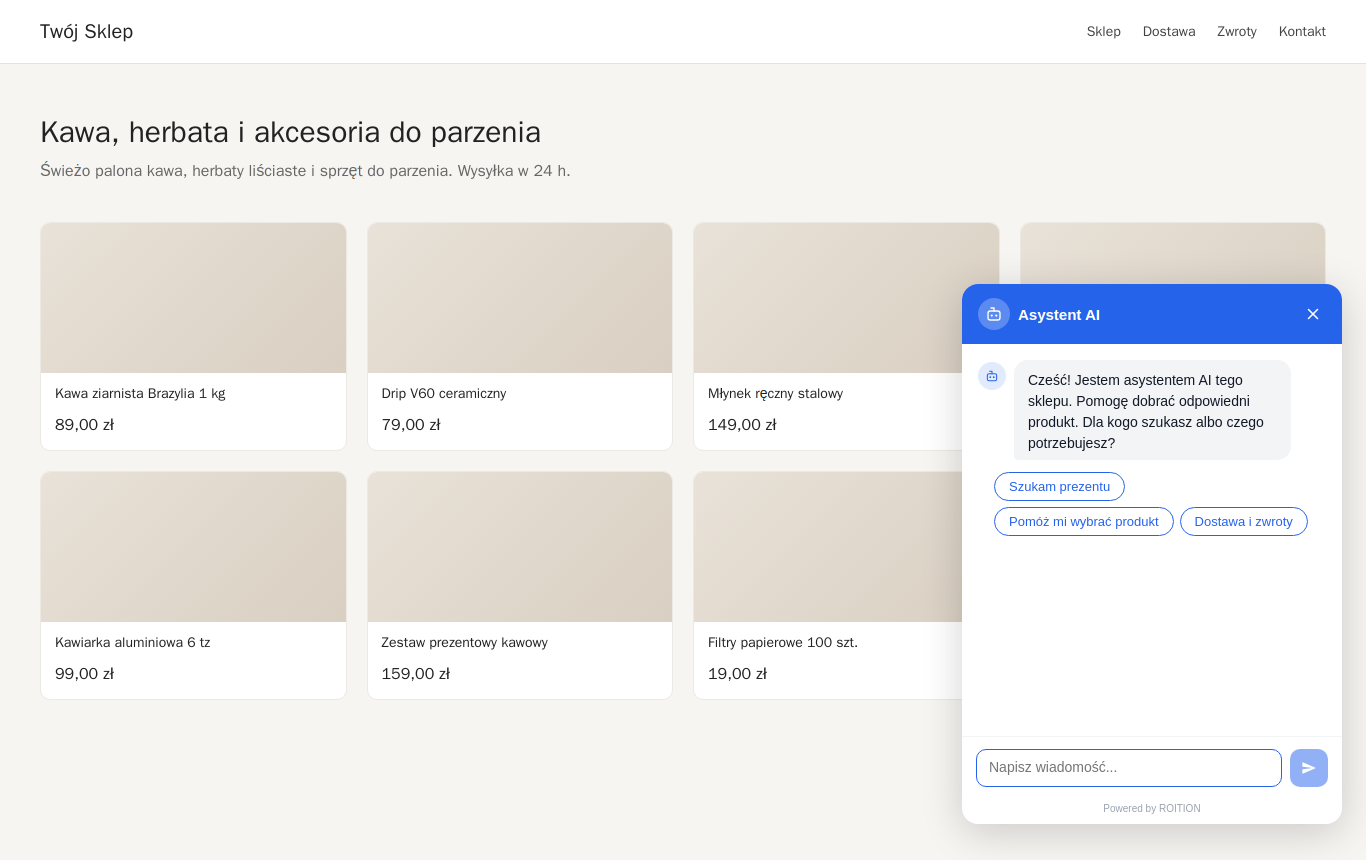
The chatbot code is a single <script> tag that you paste in your store before the closing </body>. You copy it in the Widget tab after choosing the color and chat window title and saving. The store domain from Quick start is already on the allowed list, and the widget will not work on any other domain.
| Platform | Where to paste the code | Trap |
|---|---|---|
| Shoper (RWD template) | Aplikacje i integracje (Apps and integrations) > Własne integracje (Custom integrations), field “Stopka strony, przed zamknięciem </body>” (Page footer, before closing </body>) (Shoper Learn) | another help article calls the menu “Dodatki i integracje > Integracje własne” (Add-ons and integrations > Custom integrations) |
| Shoper (Storefront) | a custom module of the “Moduł integracji” (Integration module) type | custom modules are available only on the Shoper Premium plan (Shoper Learn) |
| IdoSell | Sklep (Store) > Dodatki HTML/JS (HTML/JS add-ons), Dodaj kampanię (Add campaign), Nowy dodatek (New add-on) of the HTML type, “Wyświetlaj w: koniec sekcji body” (Display in: end of body section), whole store (IdoSell help) | an empty campaign stays inactive until you save the add-on; the add-on appears in the store with a delay |
| WooCommerce and WordPress | the WPCode plugin: Code Snippets > Header & Footer, Footer field | code pasted into theme files can disappear when the theme updates |
| PrestaShop | a custom code module or the template at the displayBeforeBodyClosingTag hook (PrestaShop docs) | template edits are lost when the theme updates; back up the theme before editing |
| Shopify | Online Store > Themes > (…) > Edit code, theme.liquid file before </body> (Shopify help) | custom pixels will not display the chat: according to Shopify help, pixels run in a sandbox that does not render interface elements |
Before you edit theme code in Shopify, duplicate the theme; Shopify recommends this in its help on editing theme code. After saving, refresh your store: the chat bubble appears in the bottom right corner.
Step 8. First week: read conversations and knowledge gaps
In the first week, check two things in the chatbot panel: conversations in the Chats tab, where every conversation from your store lands, and knowledge gaps on the Dashboard, i.e. questions the chatbot could not answer. The Dashboard also shows popular questions.
Read a few conversations in the first week: you will see what customers are looking for and fill in the missing information. You fill a gap on your store's site or in the “Shop description and extra instructions” field.
Sources refresh on their own: the feed daily, the site once a week. After a big price change, click “Run now” next to the source to refresh it immediately.
Error messages in the chatbot panel and what to do about them
In Quick start, the chatbot panel checks the OpenAI key, the feed and the store address before saving, and on an error it shows one of the six messages in the table. The panel also makes one small test call to the model, so a key without permissions or without credit fails right away.
| Message in the panel | Cause | What to do |
|---|---|---|
| This OpenAI key does not work | the key was copied only in part or deleted | create a new key and paste all of it |
| The key cannot use the chat model | a “Read Only” or “Restricted” key without model access | create a key with “All” permissions |
| Your OpenAI account has no credit | no top-up | Settings > Billing, top up at least $5 |
| We cannot download the feed from this address | wrong link, feed turned off or IP block (IdoSell) | open the link in your browser; in IdoSell lift the block |
| There is no XML file at this address | a page address pasted instead of the feed | copy the XML file link from your store admin |
| Enter a valid shop address | typo in the domain | enter the domain, e.g. yourshop.com |
What our chatbot costs compared with paid chatbots
Our chatbot has no subscription; the only cost is OpenAI tokens on your account, about $1 per 1,000 messages (our estimate). Paid chatbots charge for AI per conversation or in bundles, and their free plans include 0-50 AI conversations, up to 100 in trials. The rates in the table are the vendors' own claims from their pricing pages (checked on 14.10.2026).
| Tool | AI in the free plan | AI cost after the free plan |
|---|---|---|
| Tidio Lyro | 50 conversations, one-off | from $32.50/month for 50 conversations (about $0.65 per conversation) |
| Smartsupp Mira | only in the trial (10 + 25 conversations) | PLN 68 net/month for 100 conversations (billed annually) |
| LiveChat | no free plan | 10 resolutions in the plan from $19 per seat (billed annually), the next 50 for $49.50 |
| Gorgias | no free plan | $0.90-1.00 per automated interaction |
| eSprzedawca AI | 14-day trial, 100 conversations | PLN 300 net/month for 250 conversations |
| Sensbot | none, trial period | EUR 49/month for 200 chats |
| Our chatbot | no conversation limit | PLN 0 to us; OpenAI about $1 per 1,000 messages (estimate) |
At our estimate, a conversation with 10 customer messages costs about 1 cent (about PLN 0.04) in OpenAI tokens; in the paid tools in the table, an AI conversation costs from about PLN 0.68 (Smartsupp) to about $1 (Gorgias). A conversation and a message are different units, so compare on your own traffic.
What our chatbot does not do: when to choose a paid tool
Our chatbot has no live chat, does not check order status, does not work in Messenger or WhatsApp and does not process returns: it is a product advisor that answers from your store's content. The table shows which paid tools claim these features.
| Feature | Ours | Who has it (vendor claims, 14.10.2026) |
|---|---|---|
| Live chat and a human taking over the conversation | no | Tidio, Smartsupp, LiveChat, Gorgias |
| Order status from the store system | no | Gorgias, Sensbot, Shopify Inbox |
| Messenger, WhatsApp, Instagram, email | no, website only | Tidio, Smartsupp (WhatsApp, Messenger) |
| Return handling as an action, discount codes | no, only an answer based on your terms | Gorgias (returns), eSprzedawca (discount codes) |
| App in the Shoper or IdoSell app store | no, you paste the code yourself | Sensbot (IdoSell, Shoper), Smartsupp and eSprzedawca (Shoper) |
| Sales analytics from chat | no, only conversations and knowledge gaps | LiveChat, Gorgias, eSprzedawca |
| Support and an SLA | no | paid plans |
| AI advisor with no per-conversation fees | yes | on Shopify: Shopify Inbox (free, Shopify only); with your own API key: Chaterimo ($9/month + API cost, no Polish on its language list) |
If your customers mostly ask “where is my parcel”, want to talk to a human or write on WhatsApp, choose a paid tool.
Sensbot answers order status questions from IdoSell and Shoper data, Smartsupp combines live chat with AI, and in a Shopify store Shopify Inbox is free, recommends products from the catalog and knows the orders of logged-in customers, so on Shopify check it first.
Our chatbot makes sense when customers do not know what to choose and ask about delivery or returns, and you do not want to pay for every conversation.
A store chatbot and the AI Act
A chatbot in your store must tell customers they are talking to AI: under Article 50 of the AI Act, an AI system that interacts with people must inform them of this, unless it is obvious from the context. This provision applies from 2 August 2026. The obligation in paragraph 1 falls on the provider of the system, which for our chatbot means us.
Our chatbot greets customers with “Hi! I'm this shop's AI assistant”, and the chat window is titled “AI assistant” by default. Asked whether it is a human, it answers truthfully. You can change the window title in the Widget tab; if you do, keep the mention of AI in it.
What this guide does not tell you
This guide to setting up our free AI chatbot is based on vendor help pages and pricing checked on 14.10.2026, not on tests of paid chatbots, and the cost of $1 per 1,000 messages is our estimate for the recommended model.
We checked the store admin paths and pricing in official help pages and on vendor sites on 14.10.2026; platforms rename menus, and two Shoper help articles give different names for the same tab.
We did not test the answer quality of paid chatbots, so the feature table relies on vendor claims.
The cost of $1 per 1,000 messages is our estimate for the recommended model; the real cost depends on conversation length and the size of your product descriptions. On top of the message cost there is a small indexing cost: the daily feed refresh and the weekly site refresh compute embeddings on your key, so with a large feed, factor that into your limit.
Launch the chatbot
Create an account and launch the chatbot: PLN 0, no conversation limit, on your own OpenAI key. If you run Google Ads campaigns for client stores, after the chatbot take a look at Marketing Workspace: all your clients' campaigns in one place.

Founder of Roition, independent Google Ads API developer
Founder of Roition, with almost 3 years of Google Ads experience. Designs and builds process automation for Polish companies: system integrations, handling enquiries and quotes, AI assistants working on company data.
Frequently asked questions
Is this chatbot really free?
Yes, our chatbot is free: you pay us nothing, with no subscription, conversation limits or trial period. You pay only OpenAI for model usage on your own key, with a top-up of at least $5 to start. In return, we ask you to agree to emails from us.
How do I add an AI chatbot to my online store?
You add the chatbot to your store by pasting a single <script> tag from the Widget tab before the closing </body>. In Shoper (RWD template) you do it in Aplikacje i integracje > Własne integracje (Apps and integrations > Custom integrations), in IdoSell in Sklep > Dodatki HTML/JS (Store > HTML/JS add-ons), in WooCommerce with the WPCode plugin, and in Shopify in the theme.liquid file. Before that, in Quick start, you enter your store address, the feed and your OpenAI key.
How much does OpenAI cost for a store chatbot?
Our estimate for the recommended GPT-6 Luna model is about $1 per 1,000 customer messages. OpenAI pricing (checked on 14.10.2026) for this model is $0.10 per million input tokens and $0.50 per million output tokens. You set a hard spend limit in your OpenAI project.
How do I create an OpenAI API key for the chatbot?
At platform.openai.com, under API keys, click “Create new secret key” and copy the key right away, because you see the full key only once. We recommend a separate project for the chatbot with a hard spend limit, and “All” key permissions. The API account needs a top-up, at least $5 to start.
Is ChatGPT Plus enough instead of an API key?
No. A ChatGPT subscription and the OpenAI API are billed separately, and the chatbot needs an API key with a topped-up account.
What happens when my OpenAI account hits its limit or runs out of credit?
Once the hard project limit is exceeded, the chatbot stops answering until the start of the next month or until you raise the limit. A customer in your store sees the message “The assistant is temporarily unavailable”, and you get an email asking you to top up, at most once a day. The balance alone does not stop traffic immediately: traffic can keep going for a short while after credits run out, and a negative balance is deducted from your next top-up.
Will the chatbot work without a product feed?
Yes, it will answer from your site content: delivery, returns, terms, blog. Without a feed, though, it will not show products with a photo and price and will not recommend products from your range.
Where do I find the XML feed in Shoper and IdoSell?
In Shoper: Zwiększaj sprzedaż (Boost sales) > Porównywarki cen (Price comparison sites), turn the comparison site on in the Aktywność (Activity) column and copy “Adres wtyczki XML” (XML plugin address). In IdoSell: MARKETING > Porównywarki cen i katalogi (Price comparison sites and catalogs), Dodaj nowy serwis (Add new service), then Wybierz (Select) > Plik eksportu (Export file). You can download an IdoSell feed only from the comparison site's IP addresses, and you can lift the block for 30 days at most.
How do I create an XML feed in WooCommerce?
WooCommerce does not provide an XML file out of the box, so a plugin creates the feed, e.g. CTX Feed or Product Feed PRO. In CTX Feed you choose “Make Feed”, the XML format, and copy the link with “Copy the feed URL”. Google for WooCommerce sends products through the API and does not give you a file link, so it is not enough for the chatbot.
Why is my store's XML feed empty?
In Shoper, only single products go into the XML file and bundles are skipped; for an empty file, Shoper help tells you to check the manufacturer, delivery time, product status and the “Porównywarki cen” (Price comparison sites) tab on the product card. In IdoSell, products have to be assigned to the feed on the product card under “Marketplaces > Udostępniaj poza sklepem” (Share outside the store) (IdoSell help).
Does the chatbot work on Shoper, IdoSell, WooCommerce, PrestaShop and Shopify?
Yes, our chatbot works on any site where you can add your own script before </body>. On Shoper with Storefront this needs a custom module on the Premium plan, in IdoSell the feed has to be unblocked for 30 days, and in Shopify the code goes into theme.liquid, because custom pixels will not display the chat.
Will the chatbot check a customer's order status?
No, our chatbot does not pull order status from the store system, and it answers delivery questions from your site content. Order status is a claimed feature of Gorgias, Sensbot (from IdoSell and Shoper data) and Shopify Inbox (for logged-in customers of Shopify stores).
What do the free plans of Tidio and Smartsupp include?
The Free plan in Tidio includes 50 conversations with people per month and 50 conversations with Lyro AI, one-off. The Free plan in Smartsupp includes 25 conversations per month across live chat, WhatsApp and Messenger, and Mira AI works only in the trial (10 + 25 conversations). Our chatbot has no conversation limit, but it has no live chat either.
Does OpenAI train models on conversations from my store?
According to OpenAI documentation, data sent through the API is not used to train models by default, and logs are kept for up to 30 days. We also store conversations on our side so you can see them in the panel; deleting the project deletes the conversations.