
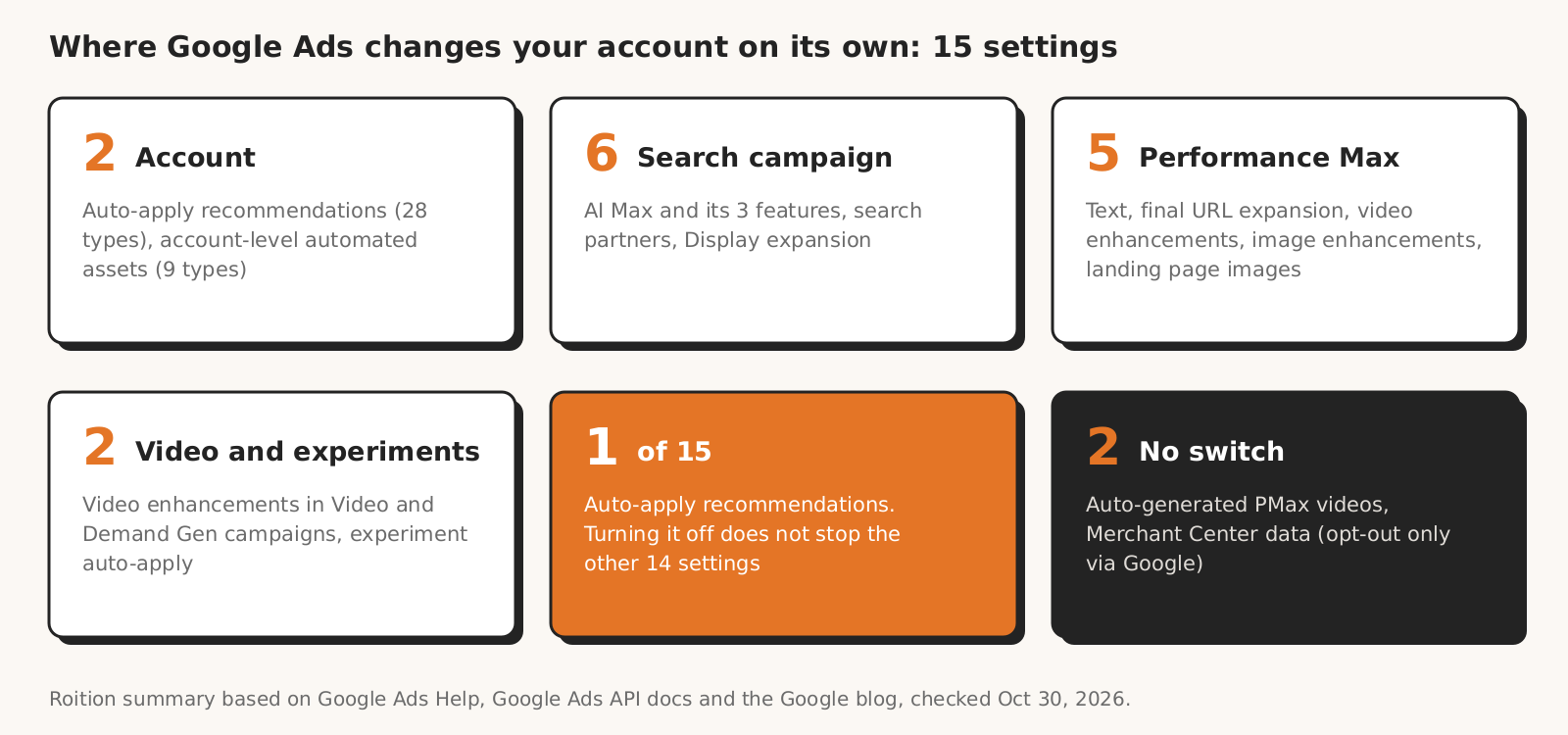
The number 15 is our own count, not a number Google publishes: we counted the settings where, according to Google Ads Help, the system changes your account by itself and you can turn it off in the interface. The two automations with no switch are auto-generated videos and Merchant Center ad enrichment, both in Performance Max.
Auto-apply itself is under Campaigns > Recommendations > Auto-apply settings. We take every menu path from Google Ads Help, the Google Ads API documentation and the Google blog, read on October 30, 2026. The account interface is sometimes newer than the help pages, so where they differ, we give both names.
Where Google Ads changes your account on its own (as of October 30, 2026)
Google Ads can change your account on its own through 15 settings: auto-apply recommendations and account-level automated assets cover the whole account, and the other 13 are set separately in each campaign, ad or experiment.
| # | Setting | Where | What it changes | Default | How to turn it off |
|---|---|---|---|---|---|
| 1 | Auto-apply recommendations | account | applies selected recommendations, including bid targets, keywords, networks | help doesn't say | Campaigns > Recommendations > Auto-apply settings |
| 2 | Account-level automated assets (9 types) | account | adds sitelinks, callouts, images, locations and other assets | help doesn't say | Campaigns > Assets > Advanced settings |
| 3 | AI Max | Search campaign | turns on settings 4, 5 and 6 together | on in new campaigns; campaigns with legacy automatically created assets move to AI Max from September 2026 | Campaigns > Settings tab > AI Max |
| 4 | Search term matching | Search campaign, ad group | matches ads to searches beyond your keywords | on with AI Max | AI Max, or Ad groups > Search term matching |
| 5 | Text customization (formerly automatically created assets) | Search campaign | generates headlines and descriptions | on with AI Max (also in new campaigns) | AI Max > Asset optimization |
| 6 | Final URL expansion | Search campaign | sends traffic to other pages on your domain | on with AI Max (also in new campaigns) | AI Max > Asset optimization |
| 7 | Google search partners | Search campaign | ads on Google's partner sites | on in new campaigns | gear icon > Networks |
| 8 | Display Expansion | Search campaign | ads on the Display Network, built automatically from your Search ads | help doesn't say | gear icon > Networks > View network settings |
| 9 | Text customization | Performance Max | generates headlines and descriptions from your landing page | on | Campaign settings > Asset optimization > Text |
| 10 | Final URL expansion | Performance Max | replaces your final URL with another page on your domain | on | Campaign settings > Asset optimization > Text |
| 11 | Video enhancements | Performance Max | creates vertical, square and shorter versions | on (API documentation) | Campaign settings > Asset optimization > Video |
| 12 | Image enhancements | Performance Max | crops, expands and animates your images, sharpens them, can add text and logo overlays | on in new campaigns | Campaign settings > Asset optimization > Images > Enhancement |
| 13 | Landing page images | Performance Max | pulls images from your landing pages | on in new campaigns if the account uses dynamic images | Campaign settings > Asset optimization > Images > Landing page images |
| 14 | Video enhancements | Video and Demand Gen campaigns | creates vertical, square and shorter versions | on | Video: in each video ad; Demand Gen: Creative optimizations card |
| 15 | Experiment auto-apply | experiment | moves 100% of traffic to the trial when results are favorable | on in some experiment types | the experiment's "Report" page |
| no switch | Auto-generated videos | Performance Max | creates videos from your images and text when you have none | stop once you add your own videos | |
| no switch | Merchant Center ad enrichment | Performance Max with a product feed | landing page content, images, feed data, AI content | only by contacting Google, typically 3-5 business days |
We base the rows on Google Ads Help (read October 30, 2026). The exception is the default in row 11, which comes from the API asset automation docs, because Google Ads Help doesn't give it.
The order in which you turn these settings off matters. The auto-apply list includes search partners, Display Expansion and broad match. Start with auto-apply, otherwise a recommendation can switch search partners or Display Expansion back on right after you turned them off in the campaign. That is our conclusion from the list of types; Google doesn't describe this case.
How to turn off auto-apply recommendations in Google Ads, step by step
You turn off auto-apply recommendations in Google Ads under Campaigns > Recommendations > Auto-apply settings, but first record who turned it on and which types were active, so your client knows what changed the account before you did.
- 1Record the current state. According to Google's help on managing auto-apply, go to Recommendations in the Campaigns menu, select Auto-apply settings, then the History tab. You'll see when each recommendation was turned on, how many times it was applied last week and when it was last applied.
- 2Check who turned it on. The "Change history" page shows the user ID that opted into specific recommendations. Google notes that accounts in the Control Center beta before April 2021 may show a different opt-in date.
- 3Uncheck the types. On the Manage tab, uncheck the recommendations and select Save. Alternatively, on the History tab, select a recommendation and select Disable; turned-off items get a red dot. You can also view the list under Admin > Account settings > Auto-apply, where "Go to auto apply settings" takes you to the same page.
- 4Turn on the weekly summary if you keep anything on. You get a weekly auto-apply email after you turn on campaign maintenance notifications in your preferences.
- 5Undo what shouldn't have gone in. According to Google's help on applying recommendations, a recommendation applied in error can be undone on the "Change history" page within 30 days, but a partial application can't be undone. The help doesn't say whether that window covers auto-applied recommendations.
Which recommendations Google Ads auto-applies: 28 types in 4 categories
Auto-apply recommendations in Google Ads covers up to 28 recommendation types in 4 categories, including adding broad match keywords, removing keywords, changing CPA and ROAS targets, and turning on search partners and Display Expansion.
Auto-apply works only at account level. You turn it on with the "Maintain your ads" or "Grow your business" bundle, or pick types by hand. According to Google's help on auto-apply, Google checks daily which recommendations are eligible, and auto-applying them won't increase your budget.
The list of types on that help page has 30 entries in 4 categories, which makes 28 distinct types, because two appear in two categories. None of them raises your budget, but some change keywords, networks and bid targets:
| Category in Google's help | Example types that change the account |
|---|---|
| Keywords and targeting (13) | Add broad match keywords, Remove redundant keywords, Remove non-serving keywords, Remove conflicting negative keywords, Expand your reach with Google search partners, Use Display expansion, Use targeting expansion |
| Bidding (13) | Adjust your CPA targets, Adjust your ROAS targets, Set a target ROAS, Bid more efficiently with Maximize conversions |
| Ads and assets (3) | Improve your Responsive Search Ads, Add dynamic search ads, Use optimized ad rotation |
| Measurement (1) | Upgrade your conversion tracking |
How target CPA and ROAS work in budget-limited campaigns since August 17, 2026 is in our guide to targets under limited budgets.
Google's list of recommendation types describes "Remove redundant keywords" as keywords with the same ad group, destination and bidding strategy, which can include different match types. "Remove non-serving keywords" covers keywords with no traffic for a year or more. Since January 26, 2026, "Add responsive search ads" is no longer on the auto-apply settings page.
From our practice: on accounts we take over, we often find auto-apply switched on, and it had removed, among other things, keywords the client cared about.
How auto-apply relates to optimization score, and why 100% is not the goal, is covered in our post on optimization score.
How to turn off account-level automated assets in Google Ads
You turn off account-level automated assets in Google Ads under Campaigns > Assets > Advanced settings, each of the 9 types separately, because Google creates them on its own and can show them instead of your own assets.
According to Google's help on account-level automated assets, Google Ads creates automated assets when it predicts better results. There are 9 types:
- dynamic sitelinks,
- dynamic structured snippets,
- automated location assets,
- seller ratings,
- dynamic callouts,
- dynamic business information,
- dynamic image assets,
- automated promotions,
- site visits.
Dynamic sitelinks, callouts and structured snippets can show alongside or instead of manually created ones, and dynamic images instead of manually uploaded images. If you haven't added locations, Google may match your business to known locations and add them to your account.
- 1Check what Google has already added. In Campaigns > Assets, select Add filter, filter by "Added by" and check "Google AI".
- 2Open the settings. The path from the same help page: Campaigns > Assets > "Associations" tab > three-dot menu > Account level automated assets > three-dot menu > Advanced settings.
- 3Turn off a type, pick a reason and save. You turn off each type separately.
Help pages name this menu differently. Google's help on dynamic sitelinks says to select Association from the "Table view" drop-down, then "Expand the Dynamic sitelinks card and select Off". That turns off all dynamic sitelinks in the account. The same page also lets you pause or remove a single dynamic sitelink from the Sitelink summary card in Campaigns > Assets.
Callouts come with different advice. Google's help on dynamic callouts recommends pausing or removing individual callouts, and describes opting out of all of them as possible, "while not recommended".
Google Ads Search campaigns: AI Max, text customization, final URL and networks
In a Google Ads Search campaign, the system changes ads and traffic on its own through 6 settings: AI Max and its 3 features, search partners and Display Expansion, and you turn them off in the campaign settings (search term matching also at ad group level).
AI Max: search term matching, text customization and Final URL expansion
From September 2026, campaigns with legacy automatically created assets move to AI Max automatically, and according to Google they get search term matching and text customization turned on. That is what Google's help on text customization and the Google blog post on AI Max say.
A new Search campaign has AI Max selected by default, together with text customization and Final URL expansion. That is from Google's help on AI Max settings. When you create a Search campaign through the API, text customization and final URL expansion are off by default.
The Google blog also says that campaigns with the campaign-level broad match setting move with search term matching, and Dynamic Search Ads from February 2027. If a campaign had legacy automatically created assets or the broad match setting, check AI Max even if nobody turned it on.
Google's help on AI Max describes 3 features that come on with it:
| AI Max feature | What it does | Where to turn it off |
|---|---|---|
| Search term matching | matches ads to searches using broad match and keywordless technology | the "Search term matching" panel in AI Max, or Ad groups > ad group > Search term matching |
| Text customization | generates headlines and descriptions from your site, ads and assets | AI Max > "Asset optimization" panel |
| Final URL expansion | sends traffic to the page on your domain Google considers more relevant | AI Max > "Asset optimization" panel |
- 1Turn off all of AI Max or part of it. According to Google's help on AI Max settings, go to Campaigns > "Settings" tab > select the campaigns > AI Max and use the toggle to opt out of all AI Max settings. If you turn AI Max back on, it returns with the same settings as before.
- 2Turn off text customization only. According to help on turning text customization off, in AI Max open the "Asset optimization" panel, uncheck "Text customization" and select Save. Generated assets stop serving, and Final URL expansion turns off with it.
Three dependencies between AI Max settings:
- once you turn off the legacy automatically created assets setting, you can't turn it back on, only as text customization in AI Max;
- with Final URL expansion on, Google doesn't respect pinned headlines and descriptions in responsive search ads;
- after you turn off AI Max, Google ignores the URL exclusions and inclusions set in AI Max.
Negative keywords still apply with AI Max turned on, as covered in our guide to negative keywords.
Search partners and Display Expansion
- 1Turn off search partners. According to Google's help on the Search Network, select the gear icon next to the campaign, open the "Networks" drop-down, uncheck "Include Google search partners" and select Save. New Search campaigns include search partners by default.
- 2Turn off Display Expansion. Google's help on Display Expansion only describes turning it on: gear icon > Networks > View network settings > "Include Google Display Network". You turn it off by unchecking the same option.
Display Expansion is changing in 2 steps. According to the same help page, from October 2026 you set a channel priority (High or Low) and an optional daily budget percentage, as an account-level default or as a campaign-level override.
From February 2027, campaigns with Display Expansion move to channel prioritization automatically, and spend across Google Search, search partners and the Display Network may shift. Google says how to keep your current setup: set the Display Network to "Low priority" with a 50% daily budget allocation.
Display Expansion also builds ads on its own from your Search ads, and from uploaded images it can create responsive display ads.
Performance Max in Google Ads: asset optimization and what you can't turn off yourself
In a Performance Max campaign, Google Ads changes text, URLs, images and videos on its own through 5 settings in the "Asset optimization" section, and two more automations can't be turned off in the campaign settings.
According to help on Performance Max text customization, text customization is on by default, and Google refreshes the generated assets at least every 48 hours. According to Google's help on Final URL expansion, Final URL expansion is on by default too.
- 1Turn off text and final URL. The path from the Final URL expansion help: Campaigns > gear icon next to the Performance Max campaign > "Campaign settings" > Asset optimization > "Text", the "Text customization" and "Final URL" checkboxes, then Save. Changes can take 24 to 48 hours.
- 2Turn off video enhancements. According to Google's help on creative automation, go to Campaign settings, select Asset optimization, choose "Video" and uncheck Enhancement.
- 3Turn off image enhancements and landing page images. According to Google's help on image enhancements, select the gear icon next to the campaign, open "Asset optimization" on the Settings page, open the "Images" tile and uncheck "Enhancement". In the same tile you uncheck the “Landing page images” box.
In Performance Max you can't turn off generated text while Final URL expansion is on. That is from the API docs on Performance Max: turning on Final URL expansion turns on text matched to the chosen page, and you can't opt out of that text.
Without Final URL expansion, the campaign only sends traffic to URLs in your page feed and asset groups. Google says turning it off can prevent unexpected URLs. On the same page it also suggests turning off text customization and "Landing page images", "if available", when you don't want generated assets.
Two Performance Max automations have no switch in the campaign settings:
| Automation with no switch | When it runs | How to stop it | Source |
|---|---|---|---|
| Auto-generated videos | when your asset groups have no videos of your own; built from your images and text | add your own videos, then the system turns the generated ones off | help on creative automation |
| Merchant Center ad enrichment | in campaigns with a Merchant Center feed: landing page content, images, feed data and AI content | only through your account manager or by contacting Google; requests typically take 3-5 business days | help on text customization in Performance Max |
Video enhancements in Video and Demand Gen campaigns, and experiment auto-apply in Google Ads
Outside the account, Search campaigns and Performance Max, Google Ads changes your account on its own through 2 settings: video enhancements in Video and Demand Gen campaigns, and experiment auto-apply, which is on by default in some experiment types and turned off on each experiment's "Report" page.
- 1Turn off video enhancements. According to Google's help on video enhancements, in existing Video campaigns you edit each video ad and uncheck "Get vertical versions of your videos" under "Video enhancements". In Demand Gen campaigns you set campaign-wide preferences on the Creative optimizations card: Shorter videos, Resized videos, Landing page previews and Generated text.
- 2Turn off experiment auto-apply. According to Google's help on monitoring experiments, this feature is on by default in some experiment types. With favorable results it applies the trial and moves 100% of traffic to it. You can disable it on the "Report" page at any time during the experiment.
The Polish version of the video enhancements help is older here: for Demand Gen it still describes checkboxes inside each video ad.
In experiment types that support it, every new experiment starts with auto-apply turned on, so you turn it off in each experiment separately. The experiments FAQ adds that you can opt out before the experiment ends.
Which automatic changes in Google Ads to turn off and which to keep: 4 questions
You don't have to turn off all 15 settings where Google Ads changes your account on its own: turn off the ones that change something your client wouldn't accept without approval, and for the rest, check what turning them off would affect.
Google flags consequences for some settings: it doesn't recommend opting out of all dynamic callouts, and the API documentation for Performance Max recommends enabling all asset automation settings. We have no data on how turning these off affects results, so instead of a rule we give questions.
| Question | If the answer is "yes" | Example setting |
|---|---|---|
| Does the change touch something the client must approve (ad copy, landing page, brand)? | turn it off or agree rules with the client | text customization, Final URL expansion, dynamic images |
| Does the change touch keywords, networks or bid targets? | turn it off in auto-apply and make those changes by hand | broad match, removing keywords, CPA and ROAS targets |
| Does turning it off switch off something else? | check the dependencies before you click | text customization turns off Final URL expansion; after you turn off AI Max, Google ignores URL exclusions |
| Will you want this setting back? | don't turn off a legacy setting without a plan | legacy automatically created assets only come back through AI Max |
For every switch, the real question is who approves the change: you, the client or Google. If you leave a setting on, write it down in your client notes with the date, so that during an account handover or a dispute it's clear this was a decision, not an oversight.
11 mistakes when turning off automatic changes in Google Ads
Mistakes when turning off automatic changes in Google Ads include turning off only auto-apply recommendations while AI Max, Performance Max and experiments keep changing the account, and turning off text customization assuming Final URL expansion stays on.
They happen because the same changes are switched on by several settings at different levels, and some of them work separately in each campaign or experiment.
| Mistake | Result | How to check |
|---|---|---|
| Only auto-apply recommendations turned off | automated assets, AI Max, PMax and experiments keep changing the account | Assets > Advanced settings, Settings tab > AI Max, Asset optimization in PMax, the experiment's "Report" page |
| Campaign settings turned off, auto-apply left on | a recommendation can switch search partners or Display Expansion back on, another can add broad match keywords | Recommendations > Auto-apply settings > Manage |
| No record of the state before turning things off | you don't know what changed the account and since when | auto-apply History tab, Change history |
| AI Max skipped because nobody knowingly turned it on | new campaigns have AI Max selected by default, and campaigns with legacy automatically created assets moved to it automatically | Settings tab > AI Max in every Search campaign |
| Text customization turned off assuming Final URL expansion stays | Final URL expansion turns off with it | the "Asset optimization" panel after saving |
| Pinned headlines with Final URL expansion on | Google doesn't respect them | the Final URL setting in AI Max |
| Looking for a campaign-level switch for dynamic sitelinks | the help describes pausing single sitelinks or turning them off for the whole account, not per campaign | Assets > Sitelink summary card, or Advanced settings |
| No locations of your own in the account | Google may match your business to known locations | Assets, filter "Added by: Google AI" |
| Turning off generated text in PMax with Final URL expansion on | text is still generated | "Text" in Asset optimization |
| Looking for a switch for auto-generated PMax videos | there isn't one | your own videos in the asset groups |
| Experiment left without checking the "Report" page | a favorable result takes 100% of traffic without your decision | the status label on the experiment summary card |
What this guide to automatic changes in Google Ads doesn't cover
This guide to auto-applied recommendations and automatic settings in Google Ads doesn't say how turning off each switch affects results, because we have no data from many accounts and no client permission to show figures or screenshots from their account. We couldn't find four things in Google's help:
- the default state of Display Expansion in a new Search campaign;
- whether you can opt out of the automatic move to AI Max before it happens (the help only describes turning it off afterwards);
- the default state of account-level automated assets;
- whether the 30-day undo window in Change history applies to auto-applied recommendations too (the help says "in error").
We don't cover App campaigns, Shopping campaigns, automatic image and text changes in Demand Gen ads (beyond video) or Google Ads Editor. Auto-apply can, however, also be turned on in Editor: according to Google Ads Editor help, you select a type under Recommendations and set the Auto-apply drop-down to Enabled, so check Editor too when you take over an account.
In Demand Gen campaigns, Google also turns on image enhancements, auto-generated video ads and landing page previews by default. You can turn them off in your ad settings, according to Google's help on Demand Gen creative and Google's help on image enhancements, but we don't count these settings in the 15.
We also don't give the time each step takes, because we didn't measure it.
How Marketing Workspace shows changes made without you
Marketing Workspace, our AI assistant for Google Ads, Meta Ads and GA4 accounts, has a "Changes made without you" check that shows what changed the account in the last 4 weeks and whether auto-apply recommendations is turned on.
- The check groups the change history for the last 4 weeks by source: interface, Google recommendations, rules, scripts, other tools (Google Ads module documentation).
- The checks don't change anything in the account. Every change goes in only after a person approves it, and the system records it in a log.
On a client account, what counts is who changed what and when; we covered the same problem for AI agents with account access in our post on AI agents and MCP.
What Marketing Workspace doesn't do: it doesn't turn off auto-apply or any other switch for you, and the check doesn't show AI Max settings, account-level automated assets or Performance Max asset optimization. You check those yourself in Google Ads, in the account and campaign settings.
We base the answers on Google Ads Help, the Google Ads API documentation and the Google blog, read on October 30, 2026.
See how Marketing Workspace works

Founder of Roition, independent Google Ads API developer
Founder of Roition, with almost 3 years of Google Ads experience. Designs and builds process automation for Polish companies: system integrations, handling enquiries and quotes, AI assistants working on company data.
Frequently asked questions
What are auto-applied recommendations in Google Ads?
Auto-apply is a Google Ads account setting: Google checks daily which recommendations are eligible and applies the selected types itself. You turn it on at account level, with the "Maintain your ads" or "Grow your business" bundle or by hand. Google's help lists 28 types in 4 categories: keywords and targeting, bidding, ads and assets, and measurement.
How do I turn off auto-apply recommendations in Google Ads?
Go to Recommendations in the Campaigns menu, select Auto-apply settings, uncheck the recommendations on the Manage tab and select Save. You can also select a recommendation on the History tab and select Disable.
Can I turn off only some recommendation types?
Yes. On the Manage tab in auto-apply settings, you uncheck individual types and select Save. If you keep some on, turn on the weekly auto-apply summary by enabling campaign maintenance notifications in your preferences.
How do I see who turned on auto-apply?
On the "Change history" page, where Google shows the user ID that opted into specific recommendations. The date each recommendation was first turned on is on the History tab in auto-apply settings.
Can auto-apply recommendations increase my budget?
No. Google says auto-applying recommendations won't increase your budget. It can, however, add broad match keywords, remove keywords, change CPA and ROAS targets, and turn on search partners and Display Expansion.
Will Google stop changing my account once I turn off auto-apply?
No. It is 1 of 15 settings. Google can still add account-level automated assets, generate text and change URLs in AI Max and Performance Max, enhance videos and images, and apply experiment results.
What's the difference between text customization and account-level automated assets?
According to Google's help, text customization is a campaign setting and automated assets are an account setting. Text customization generates headlines and descriptions; automated assets add sitelinks, callouts, images, locations and more. You turn off text customization in AI Max or in Performance Max asset optimization, and automated assets under Campaigns > Assets > Advanced settings, each of the 9 types separately.
Can I turn off dynamic sitelinks in a single campaign?
Google's help doesn't describe a per-campaign switch. You have two options: pause or remove individual dynamic sitelinks from the Sitelink summary card in Campaigns > Assets, or turn off all dynamic sitelinks in the account in the advanced settings for automated assets.
Does AI Max turn on by itself?
Yes, in two cases. A new Search campaign has AI Max selected by default. Campaigns with legacy automatically created assets move to AI Max from September 2026 with search term matching and text customization; campaigns with the campaign-level broad match setting move with search term matching, and Dynamic Search Ads from February 2027.
How do I turn off AI Max in a campaign?
Go to Campaigns > "Settings" tab, select the campaigns and select AI Max, then use the toggle to opt out of all AI Max settings. If you turn AI Max back on, it returns with the same settings as before.
Can I turn off generated headlines in Performance Max?
Yes, uncheck text customization under Campaign settings > Asset optimization > Text. According to the Google Ads API documentation, while Final URL expansion is on, Google still generates text matched to the chosen page, so turn both off.
How do I turn off image enhancements in Performance Max?
Select the gear icon next to the campaign, open "Asset optimization" on the Settings page, open the "Images" tile and uncheck "Enhancement". In the same tile you uncheck "Landing page images". Image enhancements are on by default in new campaigns.
How do I turn off search partners and Display Expansion?
In the campaign settings, open "Networks", uncheck "Include Google search partners" and save. New Search campaigns include search partners by default. You turn off the Display Network in the same section, under "View network settings", by unchecking "Include Google Display Network"; Google's help only describes turning this option on.
What can't I turn off with a switch in Google Ads?
Two Performance Max automations. Auto-generated videos stop only once you add your own videos to the asset groups. Merchant Center ad enrichment can only be turned off through your account manager or by contacting Google, and requests typically take 3-5 business days.
Do Google Ads experiments apply themselves?
Yes, in some experiment types auto-apply of favorable results is on by default and moves 100% of traffic to the trial. You can disable it on the experiment's "Report" page before it ends.
How do I undo an auto-applied recommendation?
On the "Change history" page, where Google lets you view or update applied recommendations one by one. For a recommendation applied in error, Google gives 30 days to undo it; the help doesn't say whether that window also covers auto-apply. A partial application can't be undone.